Creating Manufacturing Orders and Work Orders in Odoo
Odoo lets you create Bills of Materials and Operations. This bill of materials and operations will be the essential tool for creating and running a Manufacturing Order and its Work Orders.
A bill of materials and operations in Odoo can be created from the product form itself or from the path: Manufacturing → Products → Bills of Materials → Create.
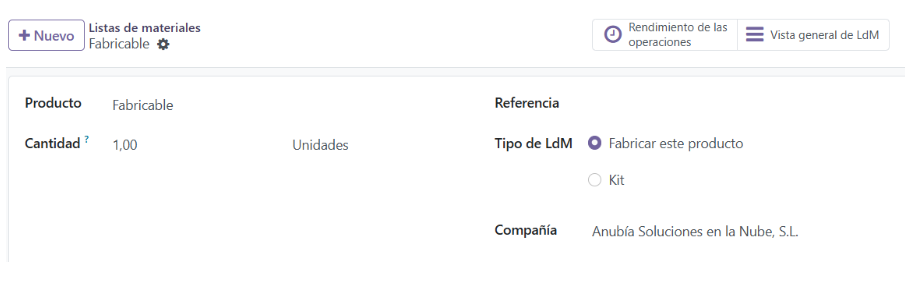
Bill of Materials form in Odoo:
- Product: In this case, the item we are going to manufacture. It can be a finished or intermediate product.
- Quantity: Amount and unit of measure to which this bill of materials applies.
- Reference: Name and/or code of the bill of materials.
- BoM Type: In this case we will select Manufacture this product.
Bill of Materials Form Tabs in Odoo:
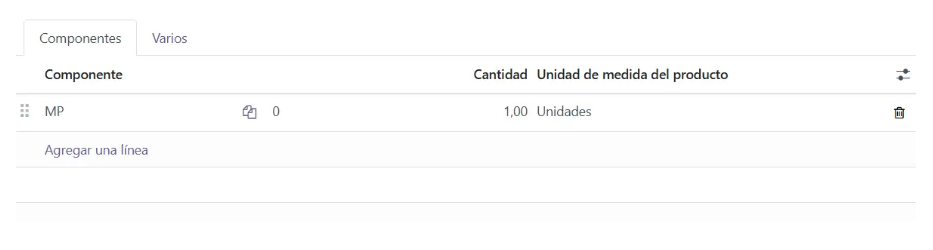
- Components: In this tab we specify the components of this bill of materials. They can be storable products, consumables or even services. To add a component, click Add a line.
- Component: Product that will be consumed in the manufacturing order.
- Quantity: Amount required to manufacture this bill of materials.
- Product Unit of Measure: The component's unit of measure. As a rule, it comes from the product form.
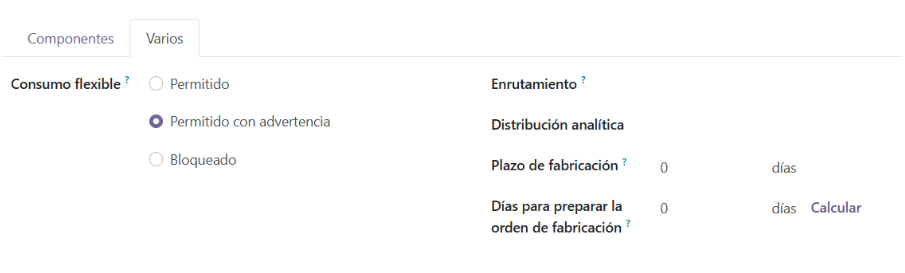
- Miscellaneous:
- Flexible Consumption: Lets you configure how material consumption will behave in the manufacturing order.
- In a strict way (Blocked). That is, component consumption is always what is stipulated in the bill of materials.
- Or in a flexible way (Allowed or Allowed with warning), so that the quantities of components consumed in the manufacturing order can be edited and differ from the theoretical ones in the bill of materials.
- Routing: Lets you define logistics routes to set warehouse and replenishment rules.
- Analytic Distribution: Lets you configure the analytic accounts to which subsequent manufacturing orders for this bill of materials' product will be allocated.
- Manufacturing Lead Time: The usual time spent manufacturing this bill of materials' product once the manufacturing order is confirmed.
- Days to prepare Manufacturing Order: Lead time for creating and confirming manufacturing orders in advance, so there is enough time to replenish components, whether purchased or manufactured in-house.
Work Centers and Operations:
Once our Bill of Materials is created, we will create our Work Centers and Operations, so we can link them to the bill of materials and turn it into a Bill of Materials and Operations.
To link Operations to a bill of materials, we must first create Work Centers and Operations.
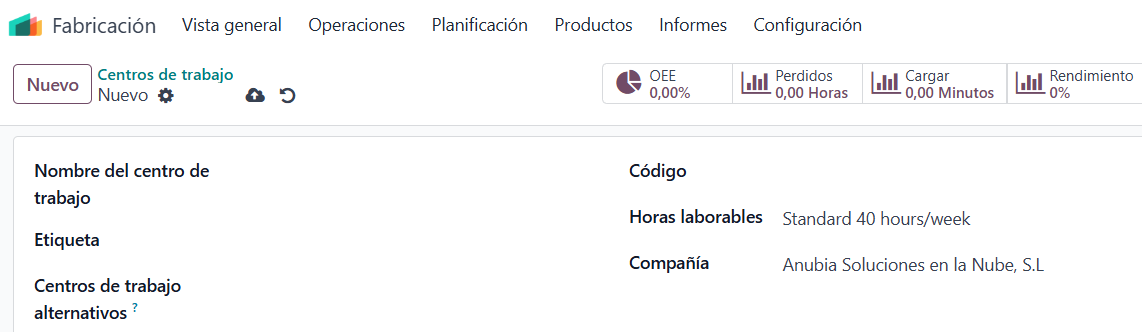
- To create a Work Center follow the path: Manufacturing → Configuration → Work Centers → New. In this case we will only fill in the field Work Center Name and Save.

- To create an Operation follow the path: Manufacturing → Configuration → Operations→ New. We will fill in the following information:
- Operation: Identifying name of the operation.
- Bill of Materials: Selection field where we specify the bill of materials related to this operation.
- Work Center: Selection field where we specify the production center where this operation is performed.
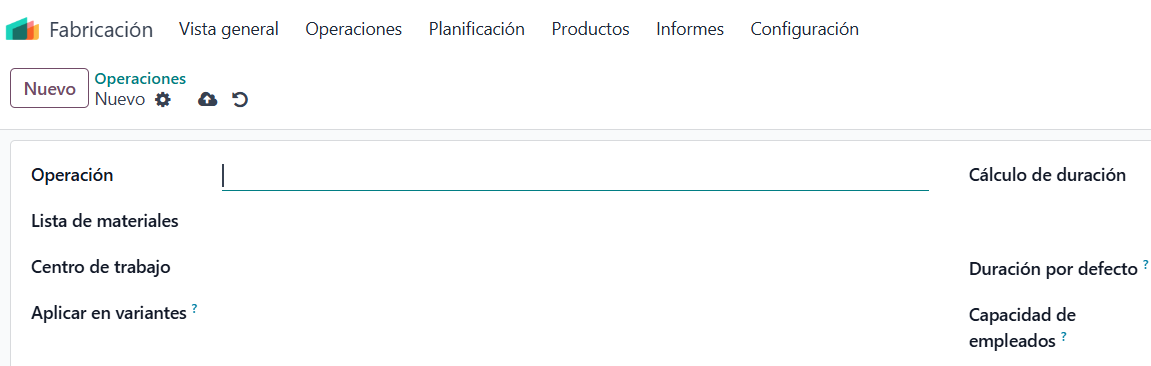
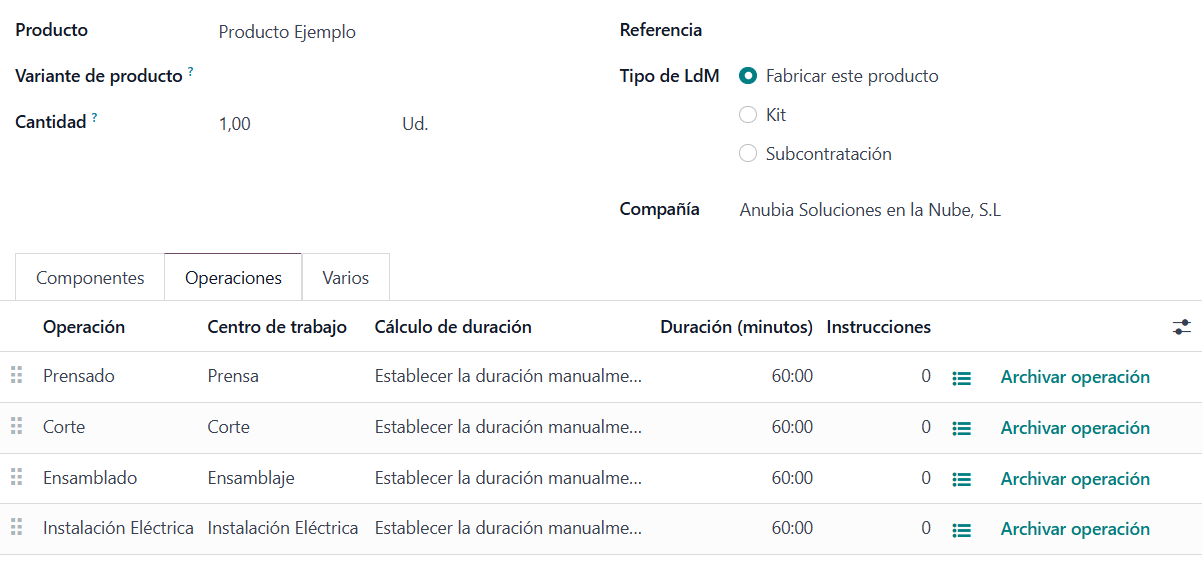
Once the Bill of Materials, the Work Centers and the Operations have been created, we will link them together and create a Bill of Materials and Operations.
To do this, we select the bill of materials we want. The Operations tab will already show the operations linked to this bill of materials, since when we created the operation we specified its related bill of materials.
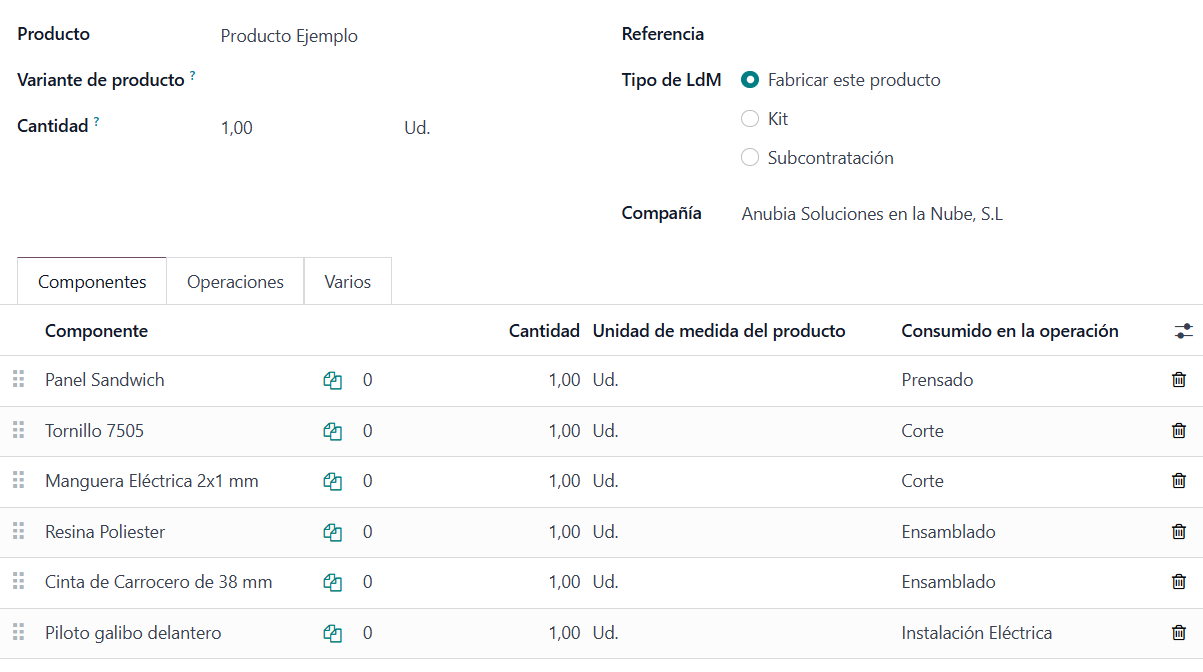
In the bill of materials' Components tab we have the field Consumed in Operation, which lets us select in which specific operation each of the bill of materials' components is consumed. This way we finally obtain a Bill of Materials and Operations.
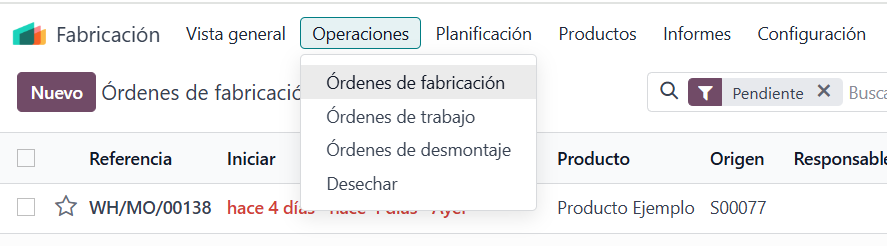
It is now possible to manufacture this product in Odoo. To do so, follow the path: Manufacturing → Operations → Manufacturing Orders → New and select the Product, the Quantity to produce and the Bill of Materials.
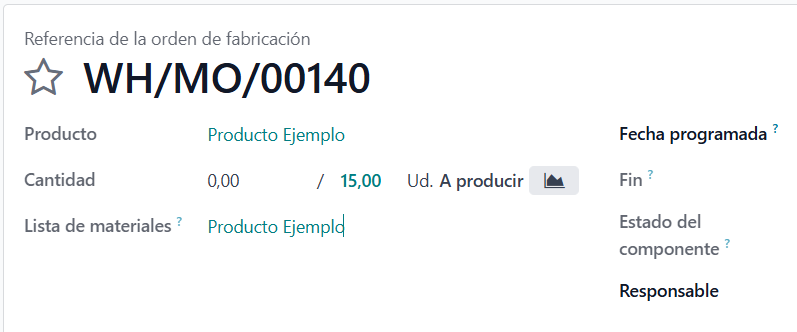
Each Operation in the Bill of Materials will become a Work Order. In this example the bill of materials contains four operations: Pressing, Cutting, Assembly and Electrical Installation, so when the Manufacturing Order is confirmed, four Work Orders will be created.
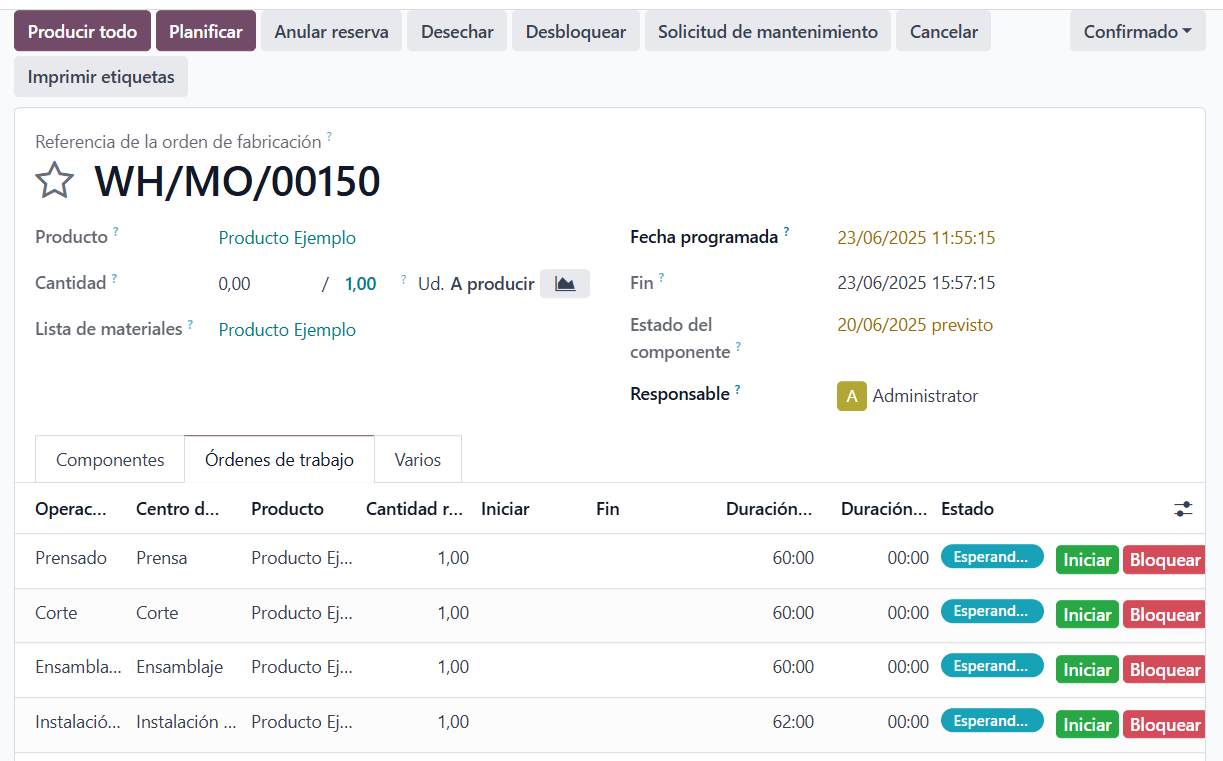
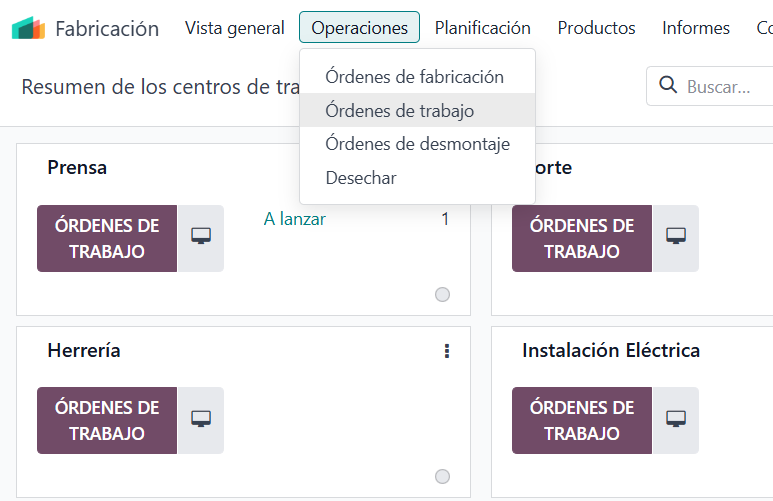
As shown in the image, these work orders can be accessed from the manufacturing order itself or from two dedicated menus:
- From the path: Manufacturing --> Operations --> Work Orders.
- From the path: Manufacturing --> Overview, in each of the Work Centers. In this case the Work Orders will or will not be shown in the kanban depending on their status.
Since a manufacturing order is made up of N work orders, the work orders are expected to be completed one by one in order to finish the manufacturing order.
Whether or not the work orders are finished affects the status of the manufacturing order.
- When the manufacturing order is confirmed and no work order has been started, the status is Manufacturing Order = Confirmed.
- When at least one work order has been started, the status is Manufacturing Order = In Progress.
- When all work orders are finished, that is Work Order = Finished, the status is Manufacturing Order = To Close.
- At that point, if we want to finish the manufacturing order, we click Produce All and the status becomes Manufacturing Order = Done.
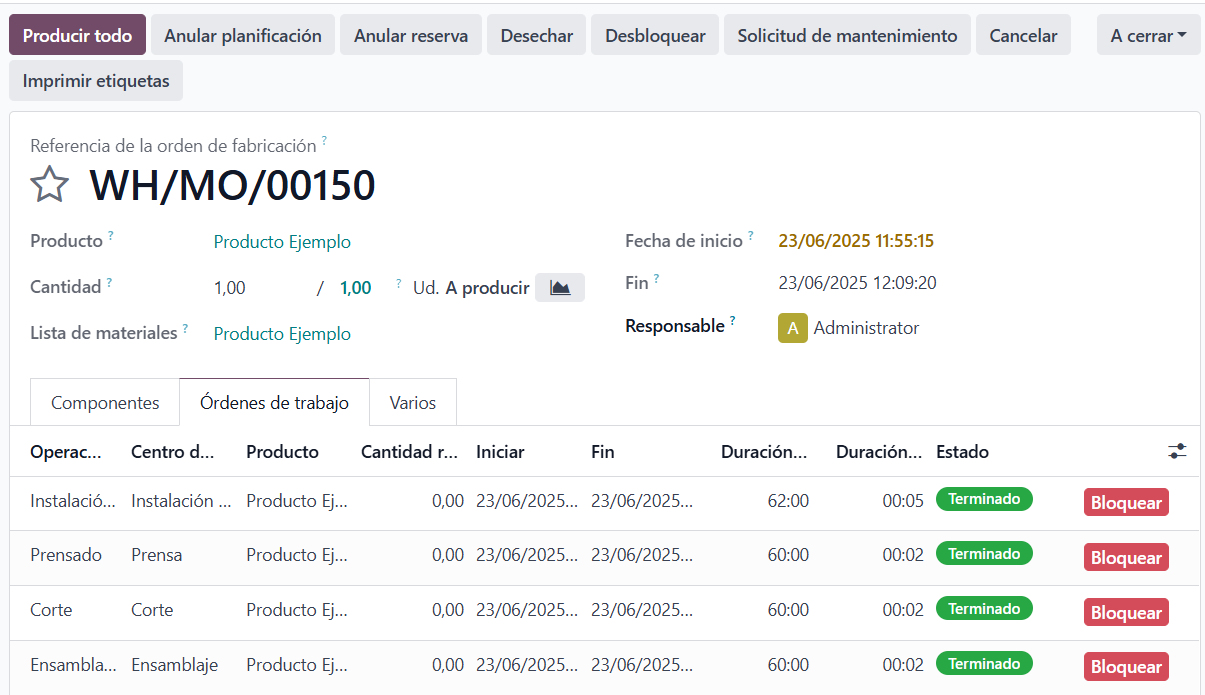
This completes the work orders and the manufacturing order. In other posts we will look at the Work Order form in detail.
Keep learning about Odoo
- Bills of Materials and operations in Odoo
- How to create manufacturing orders in Odoo
- Three-step manufacturing in Odoo
- Odoo Manufacturing
Want to implement Odoo Manufacturing in your company? At Anubía we help you configure it according to your processes. Contact us.