Odoo's Quality app is integrated with the Inventory and Manufacturing apps, and lets you perform quality checks linked to warehouse or shop floor operations. To do so, you first need to configure the quality control points, which determine where and when those checks will be carried out.
In this post we explain step by step how to create a quality control point in Odoo and what information to fill in for each field.
What is a quality control point in Odoo?
Control points are those "places or moments" where we want to monitor a specific operation: for example, receiving goods from a vendor, a manufacturing order or a delivery to a customer. Every time that operation is performed, Odoo automatically generates the quality checks defined in the control point.
Keep in mind that Quality is an Odoo Enterprise app; it is not available in the Community edition.
How to create a quality control point in Odoo
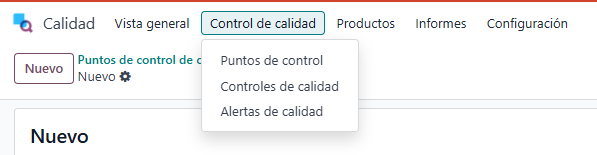
To create control points, follow this path: Quality --> Quality Control --> Control Points --> New.
Control point form fields
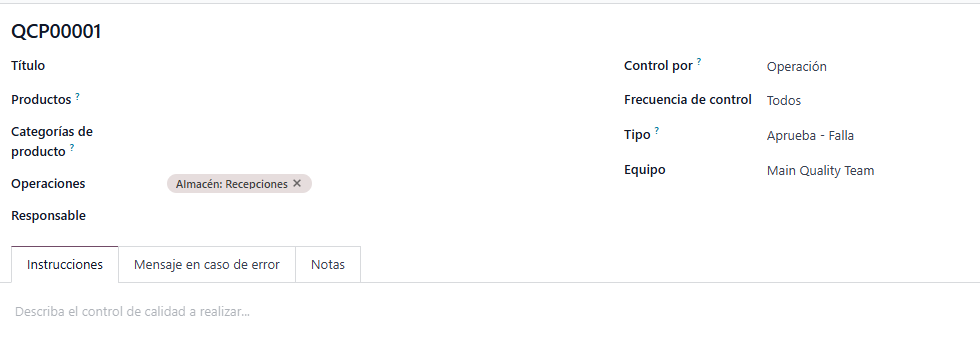
- Title: The name we want to give the control point.
- Products: The products on which we want to perform quality checks linked to the operations we will select next.
- Product Categories: The categories on which we want to perform quality checks linked to the operations we will select next.
- Operations: A multiple selector pointing to the Operation Types table in Inventory. It is the only required field on the control point form, because it is the key one and determines in which "place or moment" we want to perform a quality check. Common operations are Receipts, Manufacturing, Pick, Delivery Orders...
- Responsible: User in charge of this control point.
- Control per: A selector with the options Operation, Product or Quantity.
- Control Frequency: A selector with the options All, Randomly, Periodically or On Demand.
- Type: A selector with the options Instructions, Take a Picture, Register Production, Pass - Fail, Measure or Worksheet.
- Team: Lets you select one of the quality teams.
- Instructions: Description of the quality check to perform.
- Message If Failure: Shown when Type = Pass - Fail; it is the message displayed when the quality check has failed.
- Notes: Notes linked to the control point.
Example: Pass / Fail quality check on receipts
The image shows a simple control point, linked to the receipt operation, with control per operation, frequency "All" and of type Pass - Fail.
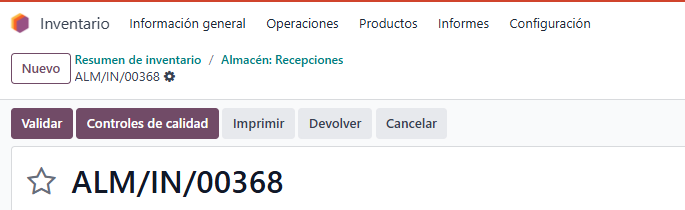
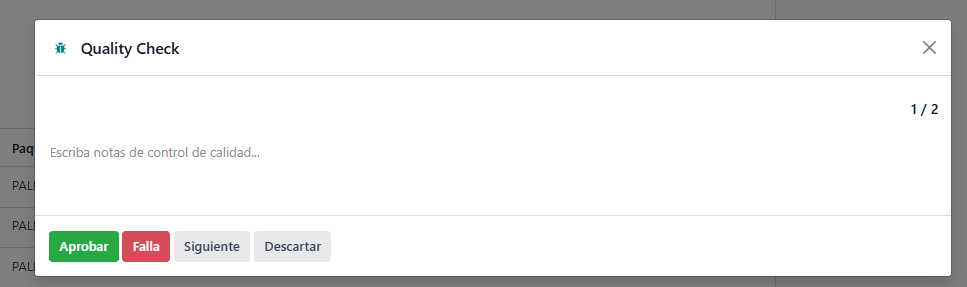
In other words, whenever we have a receipt (IN), a quality check must be performed to indicate whether it has passed or not. This is the simplest possible control point, and subsequent quality check.
You can create as many quality control points as you need, even more than one for the same operation, since they can then be differentiated by product, category...
In a later post on quality checks we will take a closer look at Control per, Control Frequency and Type, which give control points, and the quality checks they generate, many more possibilities.
Frequently asked questions:
Is the Quality app available in Odoo Community?
Quality through the quality_control module is only part of Odoo Enterprise. However, for the Community version there are OCA modules, specifically the quality_control_oca branch, which enables quality management.
Can I have several control points for the same operation?
Yes. You can define several control points on the same operation, for example on inventory receipts, and differentiate them by product or product category, each with its own control type and instructions.
What happens if a quality check fails?
The check is recorded as failed and, if configured, the failure message is displayed. From the check itself you can generate a quality alert so the responsible team can analyze and handle it.
Keep learning about Odoo
- Manufacturing orders in Odoo
- Manufacturing orders and work orders in Odoo
- Three-step manufacturing with Odoo
- Odoo Inventory and Warehouse y Odoo Manufacturing
Want to implement quality control in your warehouse or factory with Odoo? At Anubía we help you configure it according to your processes. Contact us.